Help Center / Headphones, AirPods and speakers
Headphones, AirPods and speakers
Realtimer works with whatever you use for calls — AirPods, a USB headset, wired headphones or just your MacBook. Here’s what happens with each, and the one or two cases where you set something yourself.
How Realtimer hears a call
Realtimer listens to two things at once:
- Them— the other side, taken straight from your Mac’s sound (Zoom, Meet, Teams, a browser…). It’s the clean digital audio, so it works the same with every device. It needs one permission: Privacy & Security → Screen & System Audio Recording → System Audio Recording Only.
- You — your microphone: the Mac’s built-in one, a headset mic or an external microphone. This is the part that depends on your device.
With headphones, the mic hears only you. Without them, the mic also hears the other side through the speakers — that’s the echo Realtimer removes in Speakers mode.
Every device at a glance
In short: headphones of any kind and the Mac’s own speakers work on their own. Only Bluetooth and USB speakers need Settings → Sound → Speakers.
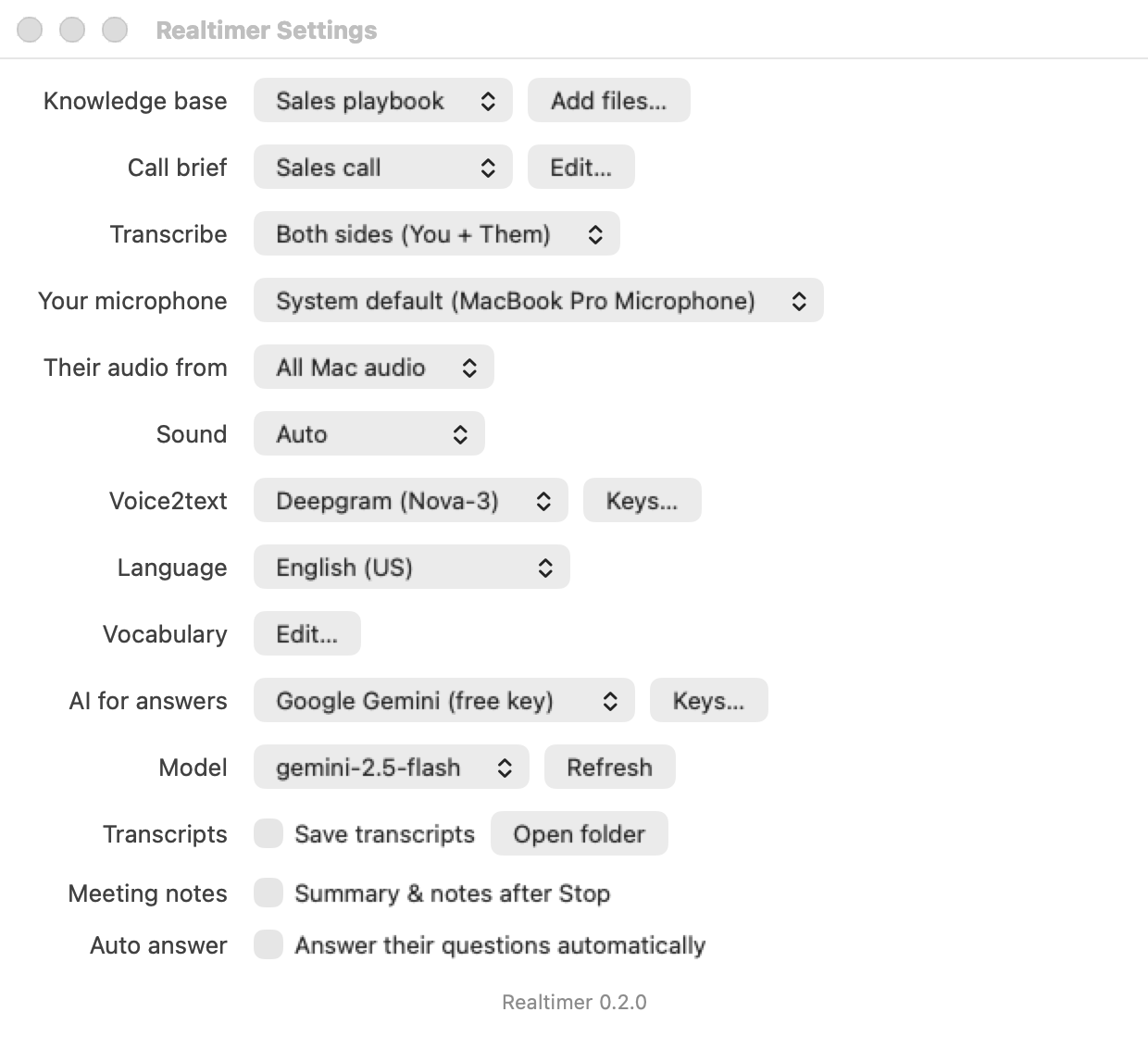
Settings → Sound: Auto, Headphones, Speakers
- Auto (default) looks at where your Mac plays sound right now. Built-in speakers, a display or AirPlay → Speakers. The headphone jack, Bluetooth and USB devices → Headphones. It checks again when you switch devices.
- Headphones — always the normal mode: nothing extra, nothing filtered.
- Speakers — always the echo filter. Use it when Auto guesses wrong, e.g. with a Bluetooth speaker.
The status line shows “speakers: echo filter on” while the filter works.
AirPods and Bluetooth headphones
They work without any setup. One thing worth knowing: when AirPods are also used as a microphone, Bluetooth switches them to a call mode and the sound in your ears gets noticeably worse.
- For the best sound, pick your Mac’s microphone in the call app (Zoom / Meet / Teams → audio settings) and in Realtimer → Settings → Your microphone.
- For the best voice pickup in a noisy room, keep the AirPods mic — sound in your ears is a bit worse, but your voice is clearer.
USB headsets and USB-C headphones
Plug in and go. Realtimer adapts to the headset’s own format — many run at 16 or 44.1 kHz instead of the Mac’s 48 kHz — and uses every channel the device sends, so a mic on channel 2 is heard too. To use the headset mic, pick it in Settings → Your microphone, or make it the Mac’s default input.
Without headphones
Without headphones, the microphone hears the other side through your speakers, so their words would appear twice — once as “Them”, once as “You”. In Speakers mode Realtimer:
- asks the transcription service to tell the voices in the mic apart;
- compares what the mic heard with what the other side just said — their words come in clean from the Mac’s sound;
- drops the voice that repeats them, and keeps yours.
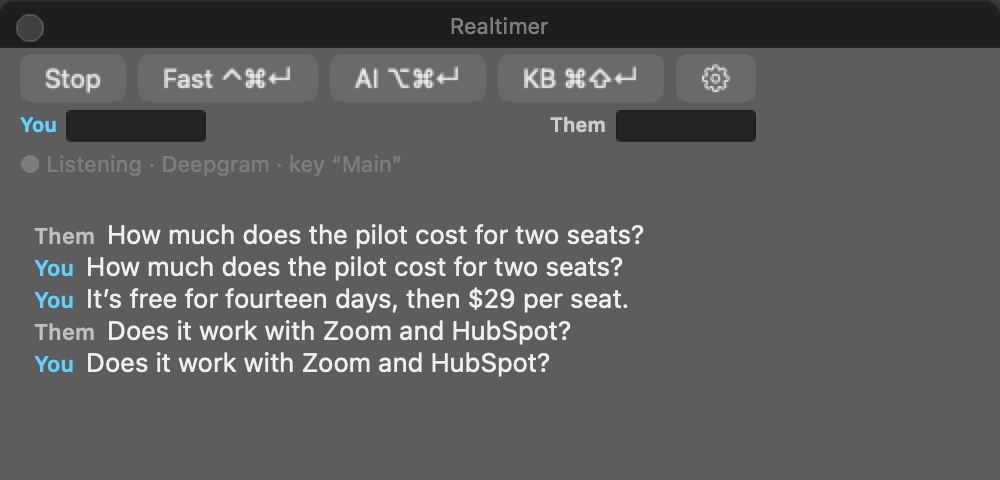
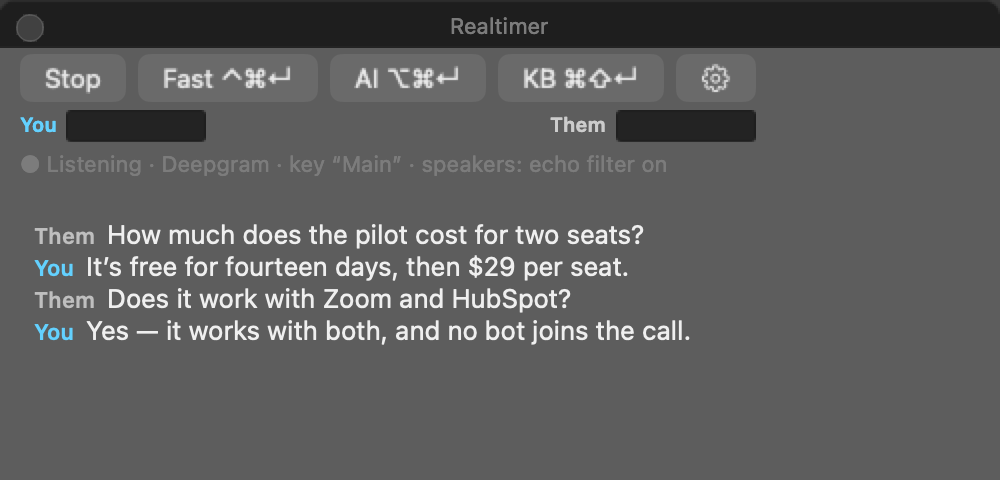
We tested it the way a call really sounds: the other side playing from a call app, “you” talking into the room. Every echo was dropped and every one of “your” lines was kept.
Accuracy is best with headphones. Without them the filter can slip when your voices sound alike, on very short replies (“yes”, “mm-hm”) or when you both talk at once. Voice separation adds a small amount to your transcription usage — about $0.002 a minute on Deepgram’s pay-as-you-go plan, only in Speakers mode.
External microphones and recorders
- Pick the microphone in Settings → Your microphone. “System default” follows the Mac’s input setting.
- Voice recorders work as a microphone only in their “USB mic” / “audio interface” mode — plugged in as a drive, macOS doesn’t see them as a mic.
- The MacBook’s 3.5 mm jack takes a headset plug (4 contacts). A recorder’s line-out (3 contacts) isn’t seen as a microphone — use a USB audio adapter with a mic input.
- To check: Apple menu → System Settings → Sound → Input. If the device isn’t listed there, Realtimer can’t use it either.
Switching devices mid-call
Put on or take off AirPods, plug in a headset, unplug a USB mic — Realtimer follows in about half a second without stopping, and the status line shows what it switched to. If the microphone you picked in Settings is unplugged, it uses the Mac’s default microphone until it’s back.
How other tools handle it
Every meeting assistant has to deal with the same echo. The common approaches:
- Meeting bots (Otter, Fireflies, Fathom and similar) join the call as an extra participant and get each person’s audio from the meeting itself, so there’s no echo — but there is a bot in the call that everyone can see.
- Granola runs on your computer like Realtimer. On the Mac it uses extra audio processing to keep the speakers out of the mic; on Windows its docs recommended headphones and noted that its AI ignores duplicated lines in summaries (Granola help).
- Zoom, Meet and Teams cancel echo for the call itself — that’s why the other side doesn’t hear themselves. That cleaned audio goes to the call, not to other apps.
- macOS voice processing (the echo cancellation FaceTime uses) — we tested it: while it’s on, macOS turns down other apps’ sound, so Realtimer stopped hearing the other side. That’s why Realtimer separates voices instead.
Realtimer’s way keeps you bot-free and uses the one thing it always has: the other side’s clean audio from your Mac, to know exactly what to drop from the mic.
Troubleshooting
- “Them” stays empty — allow Realtimer in Privacy & Security → Screen & System Audio Recording → System Audio Recording Only, then press Stop and Start. See A05.
- The other side shows up twice — you’re on speakers and Sound is set to Headphones, or Auto guessed wrong: Settings → Sound → Speakers.
- “You” stays empty — check Settings → Your microphone and Privacy & Security → Microphone. See A01 and A02.
- Sound in AirPods got worse — they switched to call mode because their mic is in use; pick the Mac’s microphone instead.
- Still stuck? Report a bug — the app’s log shows which devices a call used, which helps a lot.