How to Record a Google Meet (and Get Notes Without a Bot) in 2026
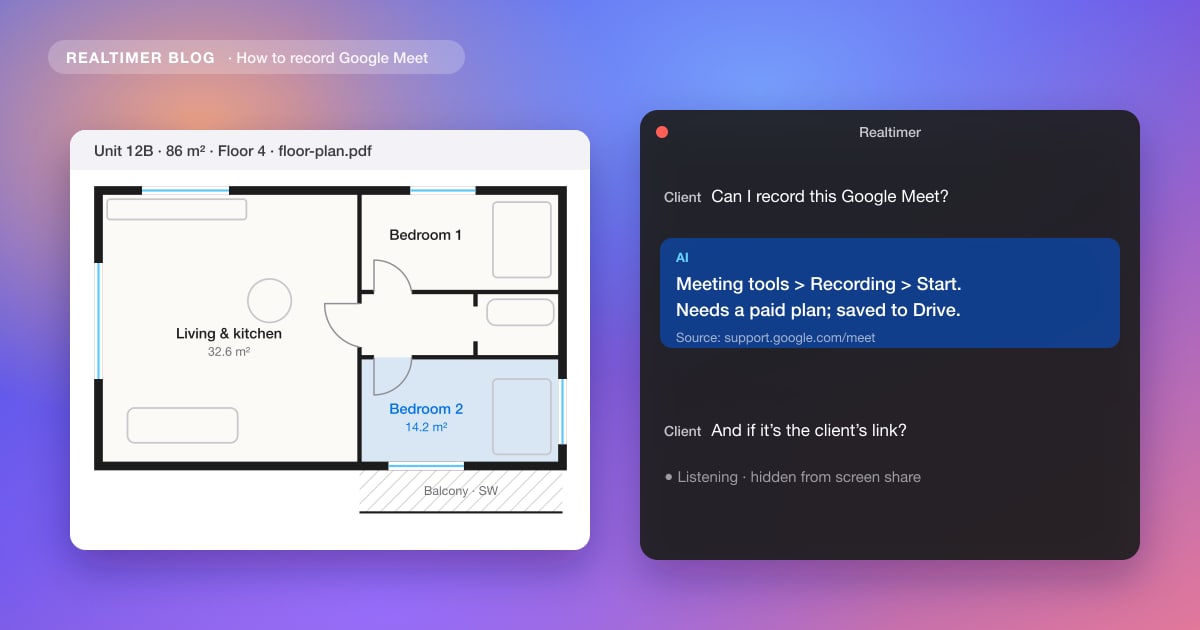
In Google Meet, open Meeting tools, choose Recording and click Start recording. It works on a computer or an Android device, on paid Google Workspace plans and Google One plans with 2 TB or more, and only if your administrator has turned recording on. The recording lands in the organizer’s Google Drive, in the “Google Meet” folder.
From Google’s Meet help center (recording, transcripts and “Take notes for me”), checked on 29 October 2026.
How to record a Google Meet, step by step
1. Join the meeting on a computer (or the Android app). Recording isn’t available on iPhone or iPad.
2. At the bottom right, click Meeting tools, then Recording.
3. Click Start recording, then Start in the pop-up. Everyone in the call gets a notice that recording has started.
4. To finish, go back to Meeting tools > Recording and click Stop recording. It also stops on its own when everyone leaves, or after 8 hours.
Which Google accounts can record
Recording is not in free Gmail accounts. Google lists these plans: Business Standard, Business Plus, Essentials, Enterprise Starter, Enterprise Standard, Enterprise Plus, Enterprise Essentials, Education Plus (staff licence), the Teaching and Learning Upgrade, Workspace Individual, and Google One with 2 TB of storage or more.
On a work account, a Workspace administrator also has to turn recording on. If the button isn’t there, that’s usually the reason.
Who can start the recording
The host can record by default, and so can a co-host. If the host hasn’t turned on host controls, people from the host’s organization can record too. Participants from outside the organization, and people on the mobile app or dialling in by phone, are notified when recording starts and stops but can’t control it.
On Education Fundamentals and Education Standard, teachers, staff and students can’t record meetings they organize.
Where Google Meet recordings are saved
The file goes to the meeting organizer’s Google Drive, in the “Google Meet” folder, with a sub-folder per meeting. The organizer and the person who started the recording get an email with the link, and the link is added to the Calendar event. While the video is being processed, Drive shows “Still processing”.
Recording needs free space in both the organizer’s Drive and the organization’s storage; without it, the recording fails. Screen shares are recorded at up to 1080p.
| Question | Answer from Google’s help center |
|---|---|
| Maximum length | 8 hours, then it stops automatically |
| Devices | Computer or Android |
| Saved to | Organizer’s Drive, “Google Meet” folder |
| Who gets the link | Organizer and the person who started it; also on the Calendar event |
| Do others know? | Yes, everyone is notified when it starts and stops |
Transcripts and notes instead of a video
Transcripts. In Meeting tools > Transcribe, click Start transcription. Transcripts work on Business Standard and Plus, Enterprise Starter, Standard and Plus, Education Plus, the Teaching and Learning Upgrade and Workspace Individual, in English, French, German, Italian, Japanese, Korean, Portuguese and Spanish. The document goes to the same “Google Meet” folder. Only spoken words are included.
“Take notes for me”. Gemini writes a notes document with quick and full notes, which arrives shortly after the meeting. It needs an eligible Workspace edition or Google AI plan on the organizer’s side, supports one language at a time and is meant for meetings of 15 minutes to 8 hours.
When you can’t record: someone else’s meeting, a free account
Meet’s own recording only works when you, or your organization, run the meeting on an eligible plan. On a client’s Meet link, a free Gmail account or a call where you’re not the host, the button is often missing.
Bot notetakers that join the call are one workaround, but the host can decline to let them in, and everyone sees them. The other is a desktop app that listens on your own computer, so nothing joins the meeting. Realtimer works that way on a Mac: it transcribes both sides of any Google Meet, answers questions from your own documents during the call, and writes notes afterwards. More options in AI meeting assistants without a bot.
Whatever you use, tell people the meeting is recorded or transcribed. Recording rules differ by country, and some require everyone’s consent.
Notes and answers on any Google Meet, without a bot
Realtimer runs on your Mac and listens to the call there, so it works on any Google Meet link, yours or a client’s. It transcribes both sides, answers questions from your price lists and documents in about a second, and writes notes after the call. The free version runs with your own API keys. Get Realtimer Free →
Recording Google Meet: FAQ
How do I record a Google Meet?
On a computer, click Meeting tools, then Recording, then Start recording and Start. Stop it from the same menu; it also stops when everyone leaves or after 8 hours.
Why can’t I record in Google Meet?
Recording needs an eligible Workspace plan or Google One with 2 TB or more, an administrator who has turned recording on, and the right role in the meeting (host, co-host or, without host controls, someone from the host’s organization). It isn’t available on iPhone or iPad.
Where do Google Meet recordings go?
To the meeting organizer’s Google Drive, in the “Google Meet” folder, with a sub-folder per meeting. The link is also emailed and added to the Calendar event.
Does Google Meet tell others when you record?
Yes. Participants are notified when recording starts and stops.
Can I record Google Meet with a free account?
Not with Meet’s own recording. Use a desktop tool that records on your computer, and tell the other participants.
Sources: Google Meet Help: Record a video meeting · Google Meet Help: Use transcripts · Google Meet Help: Take notes for me