Does Gong Join the Call as a Bot? How Gong Records Zoom, Teams and Google Meet
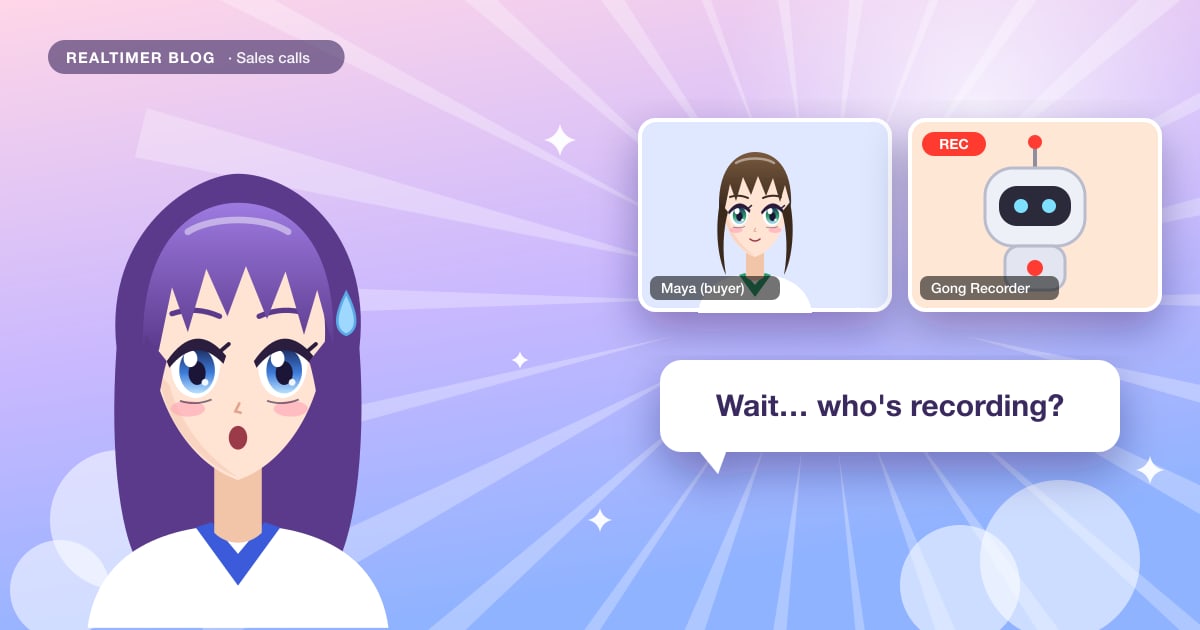
Usually, yes. Gong records most calls with the Gong Recorder, a bot that joins the meeting as a participant and shows up in the attendee list. The exception is Zoom: if your Gong admin has set up native recording, Gong collects the recording from Zoom after the call and no bot joins. On Microsoft Teams, Google Meet and Webex, the bot is the only way Gong records.
Checked in October 2026 against Gong’s help center and, where it says nothing, setup guides from Claap and Oliv.
The two ways Gong records a call
| Bot recording | Native recording | |
|---|---|---|
| Platforms | Every web conferencing integration: Zoom, Teams, Google Meet, Webex | Zoom only |
| What participants see | “Gong Recorder” in the attendee list, like any other participant | No extra participant; Zoom shows its own recording notice |
| When it starts | The bot joins at least 1 minute before the scheduled start | Gong shows the call as on air about 15 minutes before the start |
| Waiting room | The host has to admit the bot | Pressing record starts the recording, waiting room or not |
| Who sets it up | Works by default once Gong is connected to your calendar | Your Gong admin, with a paid Zoom plan and cloud recording on |
Gong’s help center says it in one line: “Native recording is only available with Zoom.” Some comparison sites mention native recording for Teams too. Gong’s own documentation doesn’t, so treat that as unconfirmed until your admin tells you otherwise.
What your buyer sees
With bot recording, a participant named Gong Recorder is already in the meeting when you arrive. On a first call with a prospect, an unfamiliar name in the list can prompt a question about recording, so it helps to mention it before the buyer does.
Your Gong admin decides how consent works. Gong’s docs say consent settings “determine when participants are notified,” and if consent is required and not given, the call isn’t recorded. The same rules apply whether or not a bot is in the meeting.
Calls Gong doesn’t record on its own
Gong finds calls through your calendar, so it skips these unless you add the recorder by hand:
- private calendar events
- meetings booked less than 30 minutes before they start
- calls hosted by someone outside your company, such as a prospect’s own Zoom link
- internal calls your company has excluded
- meetings without a web conference link (they appear in Gong with no recording)
You can add the recorder to a call manually, but Gong warns it can take up to ten minutes to start. On a short call, half of it may be over before recording begins. Gong also can’t process recordings longer than six hours.
How to cancel, stop or remove the Gong recorder
Gong’s help center lists several ways to keep a call out of Gong, depending on when you decide.
Before the meeting, cancel the recording from your Gong home page at least one hour before it starts, or mark the calendar event as private at least two hours before. Gong scans calendars every 15 to 30 minutes, so later changes may not be picked up in time.
During the call, stop the recording from the ON AIR entry on your Gong home page or from the call’s page. Any team member invited to the call can do this, as can the host and Gong’s tech admins, and you can stop one call or the whole recurring series. With bot recording, the host can also remove the Gong recorder from the meeting. On Zoom that means Gallery view, the three dots on the Gong recorder’s tile, then Remove, with the Report to Zoom box cleared. On a native Zoom recording, use Zoom’s own stop or pause button.
Whatever was recorded before you stopped stays in Gong. And if the meeting has a waiting room, leaving the Gong recorder there keeps the call from being recorded at all.
Gong on Microsoft Teams
On Teams, the bot can get stuck at the door. Some Teams meetings block guests who aren’t signed in or ask them to pass a CAPTCHA, and the Gong bot can’t do either. Gong’s fix is an authenticated bot that joins as a pre-approved user. It needs two admins: the Teams admin adds meetings.gong.io as an allowed external domain, then the Gong admin switches the option on in Gong’s web conferencing settings. When a call was skipped for this reason, Gong lists it with the code CAPTCHA_VERIFICATION_BLOCKED_BOT.
How to record without the bot
- Check which method your company uses. Open a recorded call in Gong: if Gong Recorder appears in its participant list, your company records with the bot.
- On Zoom, ask your Gong admin about native recording. Setup guides from Claap and Oliv say it needs a paid Zoom plan (Pro, Business or Enterprise) with cloud recording enabled, and that it’s switched on in Gong under Admin center, Settings, Data capture, Web conferencing. A rep can’t change it for their own meetings.
- On Teams, Google Meet and Webex, expect the bot. Gong’s docs list no native option there.
- Keep your disclosure. If you need consent to record where you sell, you still need it when no bot joins.
If what you need is help during the call
Gong is built for teams: recording, coaching, deal boards and forecasting, with managers reviewing calls afterwards. If a rep wants answers while the buyer is still talking, without a recorder in the meeting, a desktop assistant is the other route. It listens to the call’s audio on the rep’s own computer, so nothing joins the meeting. Realtimer works this way: a real-time AI assistant for sales calls on Mac that answers from your own playbook and price list in about a second and stores nothing unless you turn saving on.
FAQ
Does Gong record calls on a customer’s Zoom link?
Not automatically. Gong skips calls hosted by someone outside your company. You can add the recorder by hand, and it can take up to ten minutes to start.
Can I stop the Gong bot from joining a particular call?
Yes. Cancel the recording from your Gong home page at least an hour before the meeting, or mark the event private at least two hours before. During the call, stop it from Gong or, as host, remove the Gong recorder from the meeting.
Is native recording available on Microsoft Teams?
Gong’s help center says native recording is only available with Zoom. Check with your admin before relying on anything else.
Will participants know the call is recorded with native Zoom recording?
Yes. Zoom notifies participants when a meeting is recorded, so there’s still a recording notice, just no bot in the list.
Why didn’t Gong record my meeting?
Usually one of these: it was booked less than 30 minutes ahead, it was a private event, a prospect hosted it, there was no video link, or consent was required and not given.
Sources: Gong help: how calls are recorded; Gong help: web conferencing integrations; Claap: Gong Zoom integration; Oliv: Gong meeting configuration; Gong help: stop or cancel a recording; Gong help: Microsoft Teams integration.