How to Transcribe a Zoom Meeting: 5 Ways, Free and Paid (2026)
To transcribe a Zoom meeting with Zoom itself, record it to the cloud with “Create audio transcript” turned on: after the meeting, the transcript appears as a VTT file next to the recording. That needs a Pro, Business, Education or Enterprise account, and Zoom’s help center says audio transcription supports only English. On a free account, turn on captions with “Full transcript” and “Save captions” and save the transcript during the meeting. For other languages, local recordings or notes you can use right away, use a separate transcription tool.
Checked in October 2026 against Zoom’s own help center. Zoom renames settings from time to time; if a menu looks different, search the setting name in your Zoom web settings. We make Realtimer, one of the tools mentioned below.
Does Zoom have a transcription feature?
Yes, three of them, and they do different things:
| Feature | What you get | Plans | When |
|---|---|---|---|
| Audio transcript for cloud recordings | A timestamped VTT transcript next to the recording, editable in Zoom | Pro, Business, Education, Enterprise, with cloud recording on | After the meeting, once processed |
| Automated captions and full transcript | Live captions on screen and a running transcript panel you can save | Available on free accounts too | During the meeting |
| AI Companion meeting summary | A summary of topics, decisions and next steps | Paid Zoom Workplace plans | After the meeting |
None of them works on a meeting recorded to your own computer. Zoom’s help center is explicit: transcription applies only to cloud recordings, not to recordings saved to your device.
Method 1: Audio transcript for cloud recordings (paid Zoom)
It gives you the full text of the meeting, with timestamps, inside Zoom.
Before the meeting:
- Sign in to the Zoom web portal.
- Go to Settings, then Recording. (Admins can set it for everyone under Admin Center, Settings, Recording & Transcript.)
- Make sure Cloud recording is on.
- Under Advanced cloud recording settings, turn on Create audio transcript and save.
During the meeting, press Record and choose Record to the Cloud.
After the meeting, Zoom processes the recording first and the transcript after it. When it’s ready, open Recordings in the web portal, choose the meeting, and you’ll see the transcript as a separate file. You can play it as captions on the video, edit wording and punctuation, and download it as a VTT file.
Things to know:
- You can’t switch transcription on during the meeting. Set it before you press Record.
- Zoom’s help article says audio transcription supports English only.
- The transcript is split into timestamped sections.
- VTT is a plain text subtitle format. Open it in any text editor, or rename it to .txt.
Method 2: Save live captions (free Zoom)
Free accounts get automated captions, and the host can let people save the full transcript.
The host turns it on in the web portal:
- Go to Settings, then In Meeting (Advanced).
- Turn on Automated captions.
- Turn on Full transcript.
- Turn on Save captions. Full transcript has to be on first.
Then, in the meeting:
- Click Captions (or Show captions) in the toolbar.
- Open View full transcript to see the running text.
- Click Save transcript before the meeting ends. The file goes to your computer’s Zoom folder.
This is free and needs no extra tools, but you have to remember to save before you leave, and anyone the host allows can save the transcript too. University IT guides suggest turning Save captions off for confidential meetings.
Method 3: AI Companion summary (paid Zoom)
If what you need is the summary rather than every word, Zoom’s AI Companion writes one after the meeting: topics, decisions and next steps. It’s included with paid Zoom Workplace plans, and the host turns it on during the meeting or in settings. Check the summary against what was decided; a summary paraphrases and can turn a suggestion into a decision. Our guide on how to write meeting minutes shows what to keep and what to cut.
Method 4: Transcribe a Zoom recording you already have
Recorded to your computer, on a free plan, or in a language Zoom’s audio transcript doesn’t cover? Transcribe the file afterwards:
- Find the recording. Local Zoom recordings are saved in a Zoom folder in your Documents by default, as an MP4 for video and an M4A for audio.
- Upload the M4A (smaller and faster than the video) to a transcription service. Most AI transcription tools accept audio files and support dozens of languages.
- Download the transcript and check names, numbers and terms the AI may have misheard.
If you transcribe often, choose a service that lets you add custom vocabulary for names and product terms.
Method 5: A transcription app that runs during the call
Third-party notetakers transcribe while you talk and write notes afterwards. They work in two ways:
- A bot that joins the meeting. It appears in the participant list as a notetaker and records from inside Zoom. It’s simple to set up, but on a meeting someone else hosts it may need to be admitted from the waiting room, and participants see it. Read AI and MeetGeek work this way by default.
- An app on your computer. It listens to your microphone and the computer’s audio, so nothing joins the meeting and it works on meetings you don’t host. Granola works this way for notes; Realtimer, which we make, works this way on Mac and also shows answers from your own files during the call, then writes notes after it. We compared several bot-free tools in Avoma alternatives without a bot and Tactiq alternatives, and reviewed one of them in our Granola review.
An app on your computer is also the simplest way to transcribe a meeting on someone else’s account without asking them to record it. You still need to tell people (see below).
Which method should you use?
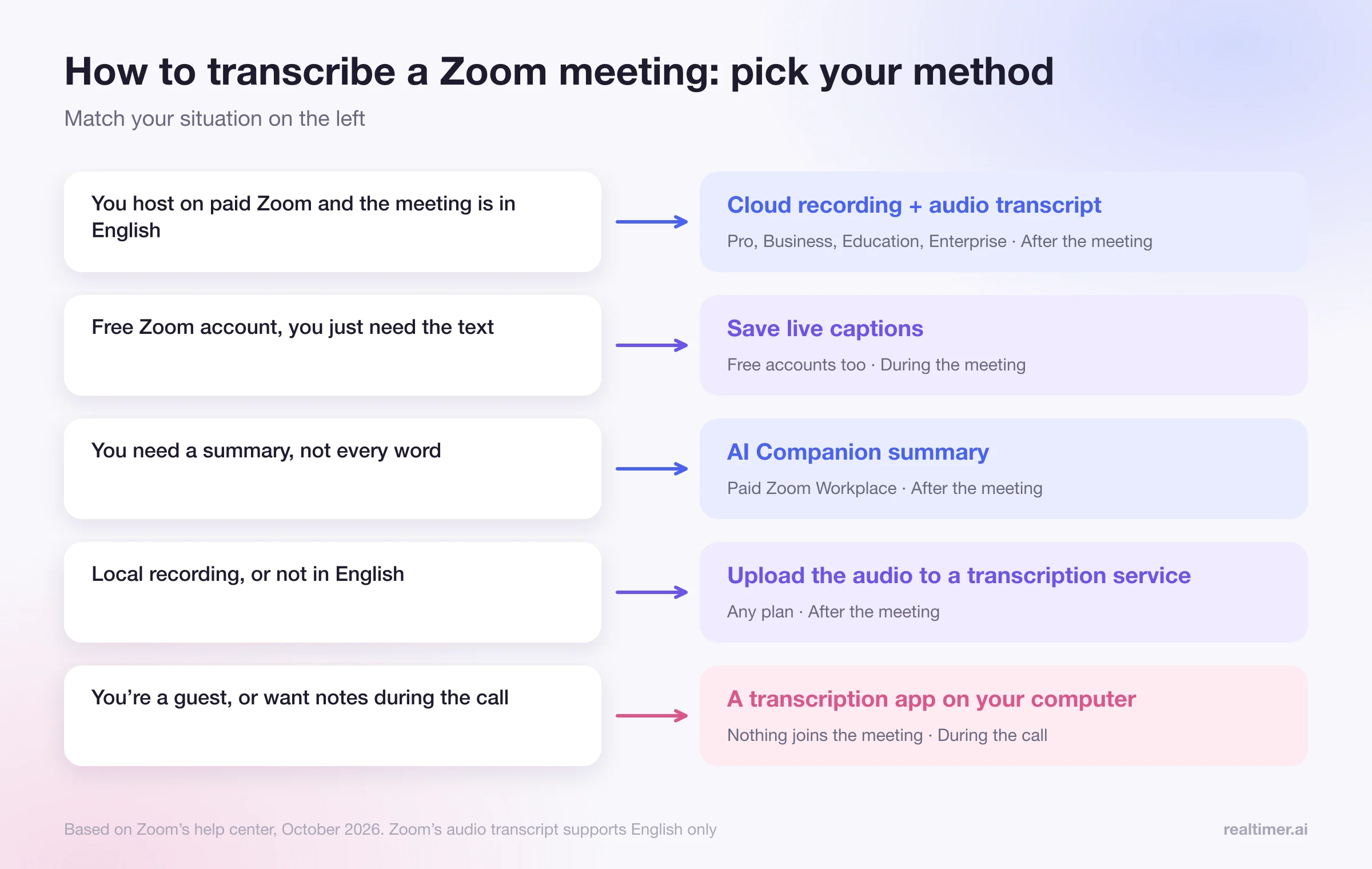
| Your situation | Best method |
|---|---|
| You host on a paid Zoom plan and the meeting is in English | Cloud recording with audio transcript |
| Free Zoom account, you just need the text | Save live captions |
| You need a summary, not every word | AI Companion (paid Zoom) |
| You already have a local recording or the meeting wasn’t in English | Upload the audio to a transcription service |
| You’re a guest on someone else’s Zoom, or you want notes during the call | A transcription app on your computer |
Recording, transcription and consent
Zoom shows a recording notice to participants when a meeting is recorded through Zoom. Third-party tools may not. Whatever method you use:
- tell people at the start that the meeting is being transcribed, and why;
- in about a dozen US states, including California, Florida and Illinois, everyone on the call has to agree to recording;
- in the EU and UK, data protection law requires a lawful basis and notice;
- store transcripts where only the right people can read them, and delete them when you no longer need them.
FAQ
Can Zoom transcribe a meeting automatically?
Yes, on Pro, Business, Education and Enterprise accounts: record to the cloud with "Create audio transcript" turned on and Zoom creates the transcript after the meeting.
Can I get a Zoom transcript on a free account?
Yes, through live captions. The host turns on Automated captions, Full transcript and Save captions, and you save the transcript from the captions panel before the meeting ends.
Why is there no transcript for my Zoom recording?
Usually because the meeting was recorded to your computer instead of the cloud, the account isn’t on an eligible plan, or "Create audio transcript" wasn’t on before recording started.
What languages does Zoom transcription support?
Zoom’s help article on audio transcripts for cloud recordings says it supports English only. Live captions and AI Companion support more languages; check Zoom’s current language list for your account.
Where does Zoom save transcripts?
Cloud transcripts appear next to the recording in the Zoom web portal under Recordings. Saved live captions go to the Zoom folder on your computer.
Can I transcribe a Zoom meeting without recording it?
You can save live captions, or use an app that transcribes on your computer without joining the meeting. Either way, tell participants it’s being transcribed.
Sources: Zoom support: audio transcription for cloud recordings; Zoom blog: auto-generated captions for free accounts; CU Boulder: enabling live automated captions in Zoom; Duke: managing automated captions in Zoom; Zoom: AI Companion; California Penal Code §632.